ZPL Labels
Labels for Zebra printers: sizes and dpi, elements, GS1-128 and SSCC barcodes, preview, test print and ZPL through the API.
Item labels, shipping labels with SSCC codes, price tags and warehouse locations are usually printed on Zebra thermal printers that speak ZPL II. For them Prynt does not produce a PDF: a template in the ZPL label format generates the ZPL code the printer runs, with the printer's own fonts, barcodes and QR codes.
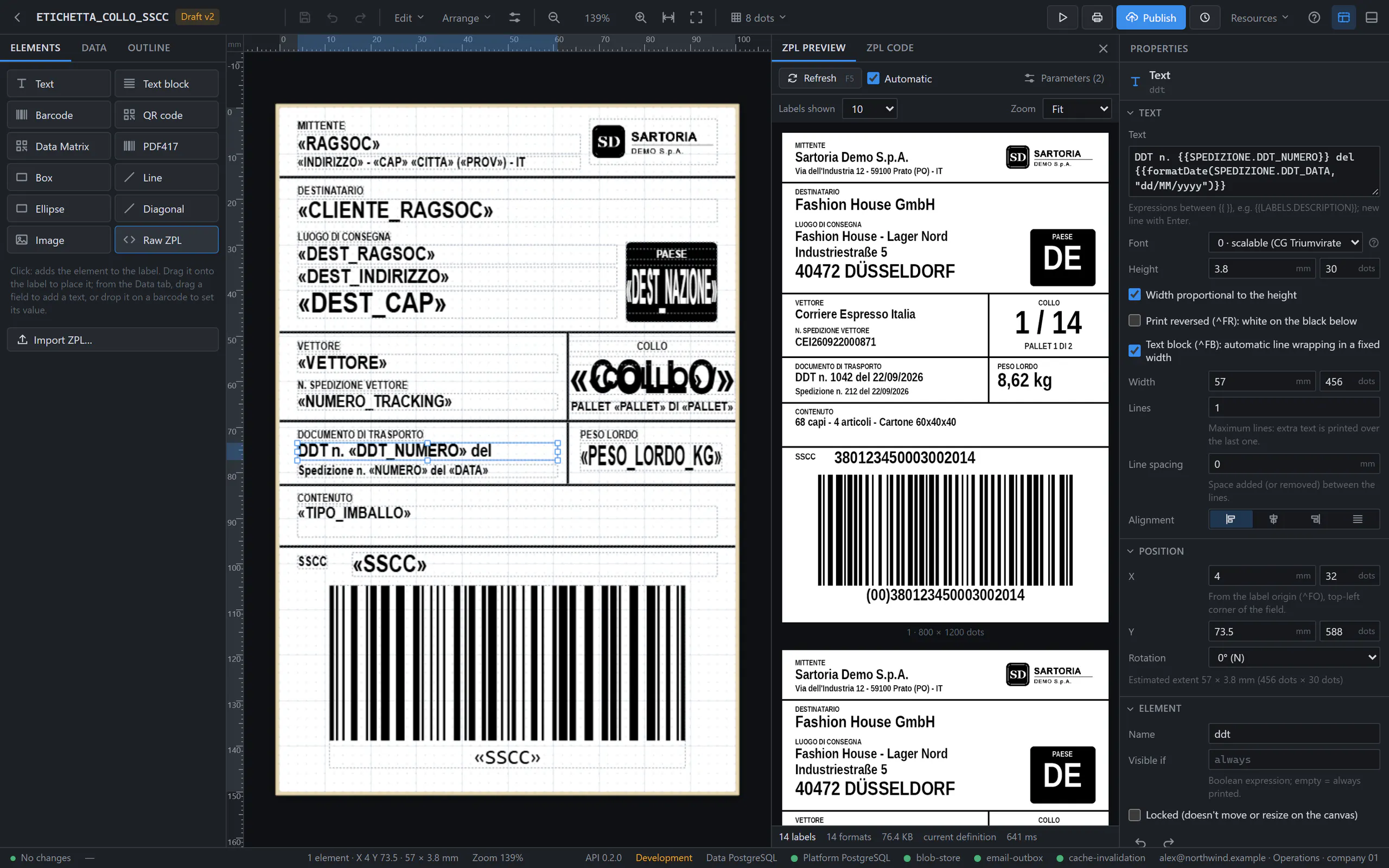
Why ZPL
- Barcodes and QR codes are drawn by the printer at its native resolution: sharp and easy to scan.
- The code is small text, fast to send and to print, even for thousands of labels.
- Everything else works as for documents: parameters, datasets, expressions, translations, drafts, versions and the API.
Create a label
In Templates, choose New template, format ZPL label, then the resolution of your printers (203 dpi is the most common; 300; 600) and the size: 100 × 150, 100 × 60, 102 × 152 (4 × 6"), 102 × 51 (4 × 2"), 60 × 40, 50 × 30, 40 × 25 mm, or a custom width × height. The format of a template never changes: a PDF label and a ZPL label are different templates. ZPL labels carry a ZPL badge in the lists.
Sizes, millimetres and dots
203 dpi8 dots/mm- The most common. 1 dot = 0.125 mm; 100 mm = 800 dots.
300 dpi12 dots/mm- 1 dot ≈ 0.083 mm; 100 mm = 1,200 dots.
600 dpi24 dots/mm- 1 dot ≈ 0.042 mm; 100 mm = 2,400 dots.
- Positions and sizes are in millimetres and become dots when the code is generated; the editor shows both and moves elements only by whole dots, so what you see is what the printer can do.
- Some sizes are in dots because that is how the printer understands them: the barcode module (the narrowest bar), the QR magnification, the Data Matrix module, the PDF417 row height.
- A template is designed for one resolution. A label made for 203 dpi prints smaller on a 300 dpi printer. To support both, clone the template and change Resolution in the clone: positions and modules are converted so the sizes in millimetres stay the same.
The label editor
- The label is drawn to scale on its media, with rulers in millimetres or dots and a grid in dots (1, 2, 4, 8, 12, 16 or 24). Zoom goes up to 800%.
- Selecting, moving, aligning and the keyboard shortcuts are those of the Designer; the arrow keys move by 1 dot (Shift: 10 dots), and the right-click menu also rotates by 90°.
- With nothing selected, or with Label settings, the properties are those of the label: size, resolution, data, copies, columns and printer settings.
- The canvas is an approximation: fields are placeholders and text widths are estimated. The ZPL preview shows the real code rendered, and the test print on the real printer is the final check.
Elements
Text^A ^FD- Text with {{ }} expressions, in a printer font: 0 · scalable (use it almost always), the bitmap fonts A–H, or a font stored on the printer (E:ARIAL.TTF). Reverse print for white on black.
Text block^FB- Text wrapped in a width, with maximum lines, line spacing and alignment.
Barcode^BC ^BE …- Code 128, GS1-128, EAN-13, EAN-8, UPC-A, UPC-E, Code 39, Code 93, Interleaved 2 of 5, Codabar.
QR code^BQ- Magnification 1–10, error correction L/M/Q/H. Always printed upright.
Data Matrix^BX- ECC 200, with a GS1 option.
PDF417^B7- Row height, security level, columns.
Box, Line, Ellipse, Diagonal^GB ^GE ^GD- Frames, separators, filled bands (black or white), rounded corners.
Image^GFA- An asset or a binary field, converted to one bit per dot with a threshold or dithering. Keep images small: they travel with every label.
Raw ZPLas is- Commands the editor does not have (cutter ^MMC, …), relative to the element. Cannot contain ^XA/^XZ.
Every element has a position (the top-left corner, like ^FO), a rotation of 0°, 90°, 180° or 270°, a name, Visible if and a lock. Every value, fixed or from the database, is encoded with ^FH: a value containing ^XZ or ~JA prints those characters, it never sends a command to the printer. Text is UTF-8 (^CI28), which needs Zebra firmware x.14 or later.
Barcodes, GS1 and SSCC
The value of a barcode is an expression: a field (ITEM.EAN) or a fixed text in quotes ("DEMO"). Other properties: module in dots, wide-to-narrow ratio (Code 39, ITF, Codabar), bar height, human-readable text above, below or none, and the check digit.
GS1-128 and SSCC
Write GS1 data as (AI)data(AI)data…. Prynt checks the application identifiers and the lengths, inserts FNC1 where needed, verifies the check digit of (00) SSCC, (01) and (02) GTIN (or adds it, with Add the check digit) and prints the human-readable line with the AIs in brackets. An SSCC shipping label is simply:
"(00)" & PARCELS.SSCC"(02)" & ITEM.GTIN & "(37)" & ITEM.QTY & "(10)" & ITEM.LOTGS1 DataMatrix uses the same syntax with the GS1 option. For logistics labels use a module of 4 dots at 203 dpi (6 at 300 dpi) and leave a quiet zone of at least 10 modules on both sides.
Invalid values
BARCODE_VALUE_INVALID). A value from the database that cannot be encoded prints as plain text instead of the barcode, with the warning BARCODE_INVALID in the preview.One label per record, copies, multi-up
- Dataset: the label prints once per record of a dataset (one per item variant, one per parcel), with an optional filter and sort; None prints a single label. One-record datasets (the company, the shipment header) can be used on every label.
- Copies: an integer expression evaluated per record, written as
^PQso the printer repeats the label without receiving it again:Params.COPIES,PARCELS.LABELS. Empty = 1, 0 = the record does not print. - Columns (1–20) and Gap, for media with several labels across: you design one label and each column prints the next record.
- A render prints at most 10,000 labels, copies included. No record means no label.
Printer settings
Darkness~SD 0–30- Raise it if the print is light or barcodes do not scan; lower it if it smears.
Speed^PR 1–14- Inches per second: slower is sharper.
Media^MT- Thermal transfer (with a ribbon) or direct thermal.
Origin X, Y^LH- Moves every field together, to correct a slightly shifted print.
Print^PO- Normal or upside down.
Empty means the command is not written and the printer's own setting applies. Width, length, origin, orientation and UTF-8 (^PW, ^LL, ^LH, ^PO, ^CI28) are written in every label, so a label never inherits the settings of the previous job.
ZPL preview and code
- ZPL preview (F5 or Refresh; Automatic refreshes after each change): the server generates the code with the real engine, from the definition even unsaved and the test values of the parameters, and renders it at 1 pixel per dot. Choose 5, 10, 20 or 50 labels and the zoom; warnings and errors link to the element.
- ZPL code: exactly what the printer receives, highlighted, with Copy and .zpl download.
The preview is an emulator: the scalable font is drawn with a similar condensed font, so text widths may differ by about 10%, and fonts stored on the printer are not available. Keep text and barcodes 3–4 mm from the edges and check barcodes with a scanner on a test print.
Import an existing ZPL file
Import ZPL… turns .zpl or .prn files (ZebraDesigner, an old ERP, hand-written; up to 2 MB) into editable elements: choose the resolution the file was written for, Replace the label or Add the elements, Analyze to see what is recognized, then Import. Texts, barcodes, 2D codes and shapes become elements; graphics and commands the editor does not have become Raw ZPL in the same position, so they print the same. Imported texts are fixed: replace them with {{DATASET.FIELD}} to make them variable.
Test print
- Inside Prynt Desktop, Test print offers This computer: the label goes to a Zebra with a Windows queue, to a network printer configured in the app or to an address of your LAN (port 9100–9109).
- Server test printer sends the label from the Prynt server to a printer configured by name on the server; it is available only where such printers are configured and reachable.
- The code is generated like the preview and sent once, never retried:
PRINTER_UNAVAILABLEmeans nothing was sent;PRINTER_SEND_FAILEDmeans some labels may have printed. At most 50 labels per server test print.
Printing through the API
Render a published label like any template. The response is the ZPL code, application/zpl in UTF-8, with the number of labels in X-Label-Count. Your application sends it to the printer, typically over raw TCP on port 9100, or through a Windows queue that accepts raw data.
curl -X POST https://api.prynt.it/api/v1/render \ -H "Authorization: Bearer prynt_live_..." \ -H "Content-Type: application/json" \ -d '{ "template": "LABEL_SSCC", "format": "zpl", "parameters": { "SHIPMENT_ID": 5120 } }' \ -o labels.zpl # HTTP/1.1 200 OK# Content-Type: application/zpl; charset=utf-8# X-Document-Format: zpl# X-Label-Count: 12# Send the code to a Zebra printer of your network (raw TCP, port 9100)nc 192.168.10.50 9100 < labels.zpl"format": "zpl" is optional (the template's format is used); asking for pdf from a label, or zpl from a document, fails with 422 FORMAT_MISMATCH. An empty result (no records, or all copies 0) returns no labels, with X-Label-Count: 0.
Troubleshooting
Smaller or largersize- The template's resolution differs from the printer's: clone it and change Resolution.
Shiftedposition- Calibrate the media on the printer; for small offsets use Origin X/Y.
Light, barcodes not readquality- Higher Darkness, lower Speed, or a larger module.
Text out of the edgetext- Use a Text block with width and lines, and truncate long values in the expression.
Wrong accents or €encoding- Firmware without ^CI28 (UTF-8): update it to x.14 or later.
Barcode printed as textvalue- The value cannot be encoded for the symbology (BARCODE_INVALID).
Logo missingimage- Wrong asset code, unreadable image, or a light logo: raise the Threshold.