Customize your documents (no code)
For business users: the first access, the list of fields, logo and colors, columns, Show if, a real document in the preview, publication and versions.
This guide is for the people who use the documents every day, in administration, logistics, quality or management: you change delivery notes, invoices and labels yourself, with the mouse and menus. You never write code or SQL, and nothing reaches your printouts until someone approves it.
Before you start
- You need an account in your company's organization, usually with the designer role: you change the layout and ask for publication. Someone with the developer, admin or owner role approves.
- The data of your documents (your ERP, the queries, the names of the fields) is prepared once by a technician: your software house or the Prynt team. Until then you can try everything with the sample data of the ready-made templates.
- Prynt is in English or Italian: change the language in Account → Profile. This guide uses the English names of buttons and menus.
First access and the four steps
When you sign in, the overview of your workspace shows Your first document in four steps, with a checklist that tells you where you are: Data connected, Template chosen, First preview, Published. Click a step to open it; Hide removes the panel.
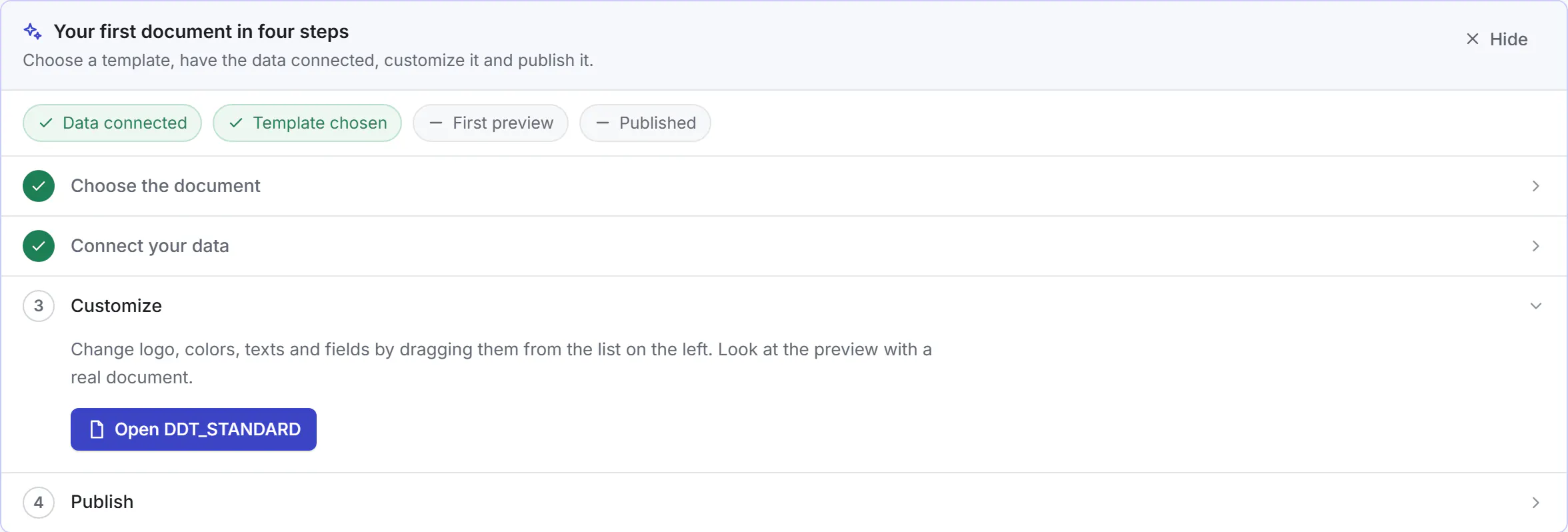
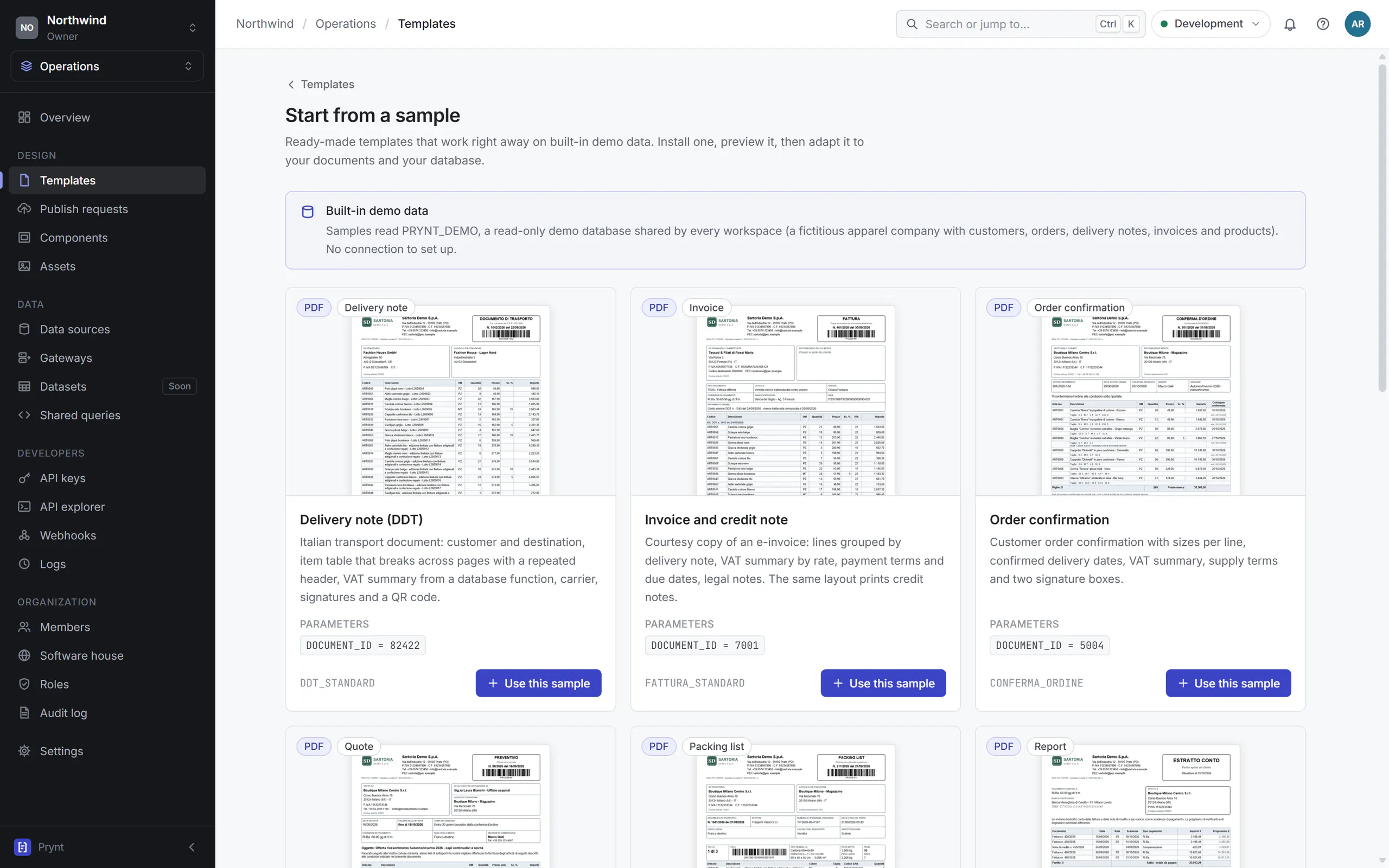
- Choose the document. Open the gallery shows ten ready-made templates (delivery note, invoice, order confirmation, quote, packing list, account statement, price list, product sheet, SSCC label, declaration of conformity). Use this sample creates your copy, which works at once with sample data.
- Connect your data. This step is not yours: your software house (or the Prynt team) connects the ERP once and gives the fields readable names. If nobody is doing it yet, Ask Prynt support sends a request from the same panel; an administrator can also invite your software house (see below).
- Customize. Open the template and change it in the Designer: the next sections explain how.
- Publish. When it is ready, Request publication: nothing reaches your printouts until it is approved.
Using the list of fields
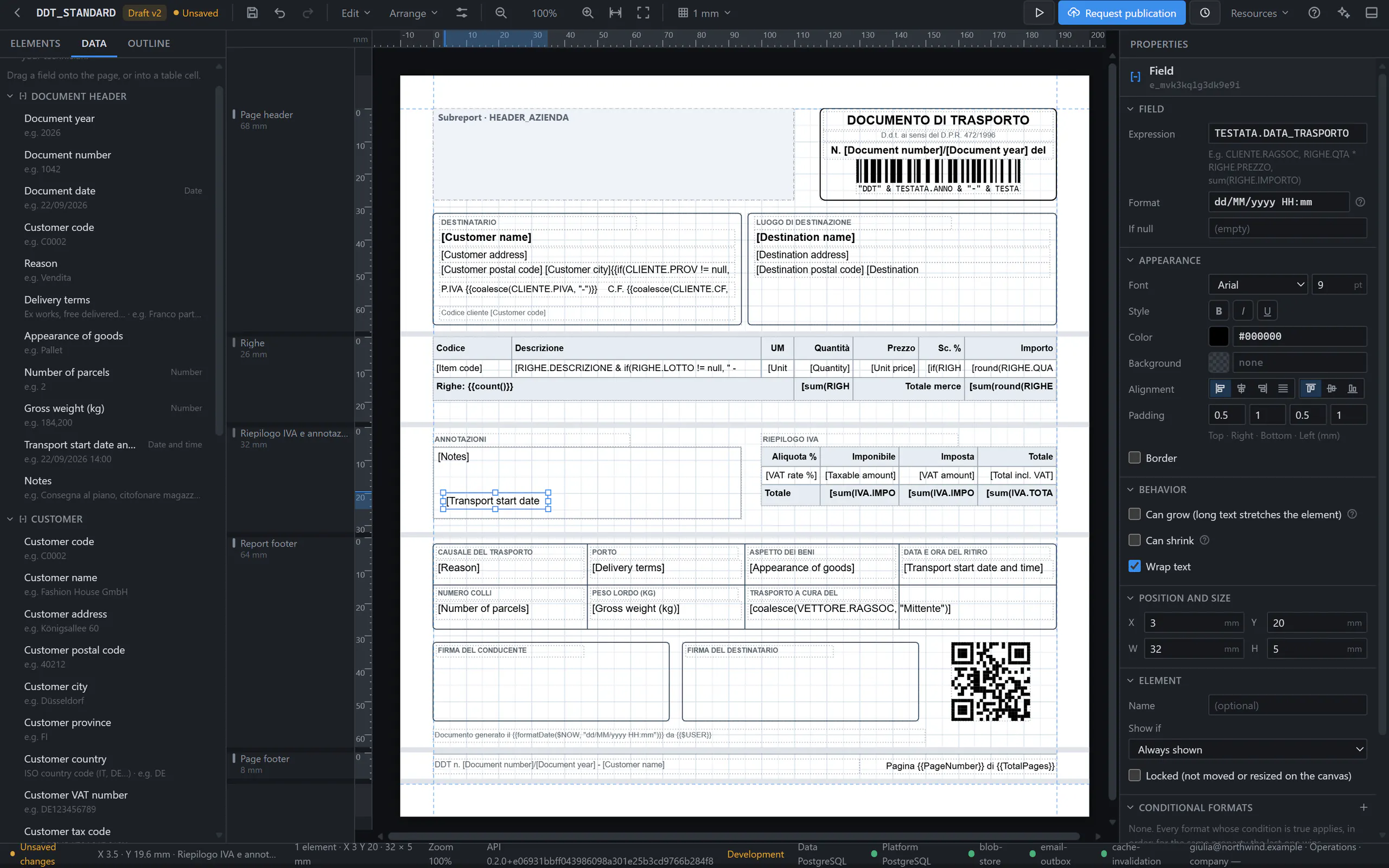
In the Designer, the Data tab on the left lists the fields of your document with names you understand, grouped as in the document (Document header, Customer, Lines…), each with an example such as e.g. 22/09/2026 and its kind (date, number, amount). At the top: The data of this document is prepared by your technician.
- Find the field: the groups open and close with their arrow.
- Drag it onto the page, where you want it, or into a cell of a table. The field appears with its name in brackets, such as [Transport start date]; in the preview it shows the real value.
- With the field selected, the Properties on the right change its look: font, size, bold, color, alignment, and the format of dates and numbers.
- Save with the disk icon or Ctrl+S: your changes go into a draft, never straight to the printouts.
If a field is missing
Logo, colors, fonts and texts
- Select an element by clicking it on the page or in the Outline tab, which lists every element by band (page header, lines, footer…).
- Texts: write directly in the Text box of the properties, for example the footer line with opening hours or the legal note.
- Colors and fonts: in Appearance, Font, size, Style (bold, italic, underline), Color (a palette or a code such as #3B44C4), background and alignment.
- Logo: select the image, or drag a new Image from the Elements tab, then Choose or upload an image. Images are kept in the Assets of the workspace, so the same logo serves every template.
- Move and resize with the mouse; the arrow keys move by 0.5 mm (Shift: 5 mm). Ctrl+Z undoes the last step.
Moving the columns of a table
- Click the table (for example the lines of the delivery note) and look at Columns in its properties.
- Move the column left or Move the column right changes the order; Remove column takes one away (for example the price, for a delivery note that travels without prices); Insert column on the right adds one, then drag a field into its cells.
- Adjust the width of each column in millimetres: the total width is shown under the list.
Show if
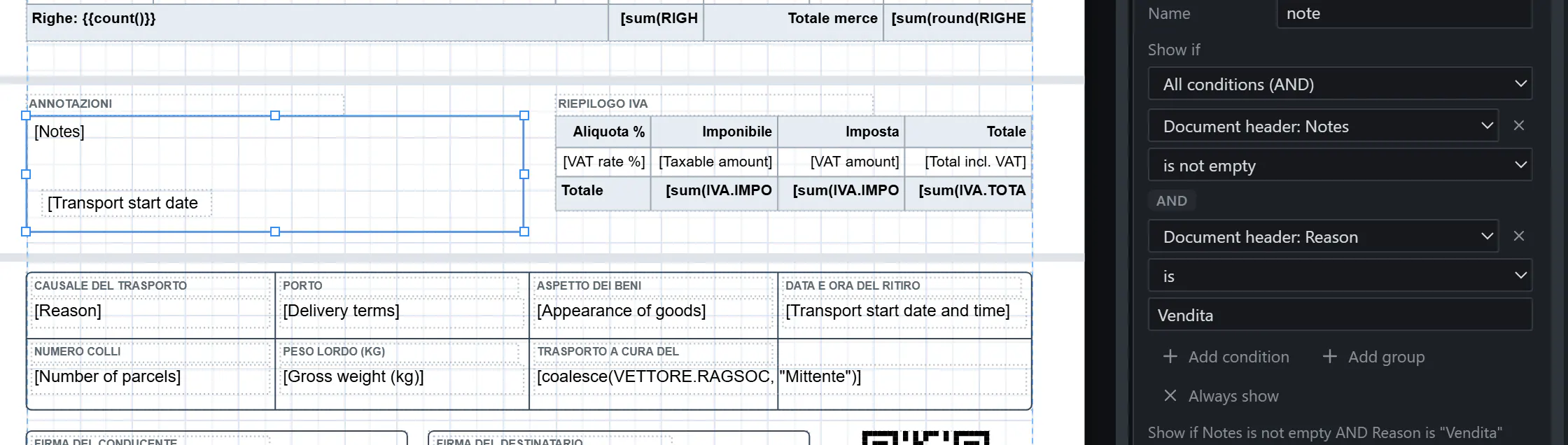
An element can print only in some cases, for example the notes box only when there are notes. Select it and, under Show if, choose from the menus:
- the field (Document header: Notes);
- the condition (is not empty, is, is greater than, contains… depending on the field);
- the value, when the condition needs one.
Add condition adds another row; the menu above the rows chooses All conditions (AND) or At least one (OR). Add group adds conditions in brackets, checked together. A sentence under the menus sums it up, for example Show if Notes is not empty AND Reason is “Vendita”. Always show removes the condition.
A condition written by a technician with other expressions appears as Advanced condition (set by the technician): you can read it, not change it.
Previewing a real document
- Click the preview button at the top (PDF preview, F5). The first time it uses the sample data.
- On the left, type a number or a customer in Type a number or a customer… and pick the document, for example DDT n. 1041 del 21/09/2026. The preview is generated again with the real data and includes your unsaved changes.
- Check several documents: one with many lines, one without notes, one for a foreign customer.
- Use the sample data goes back to the test values. The download button saves the PDF.
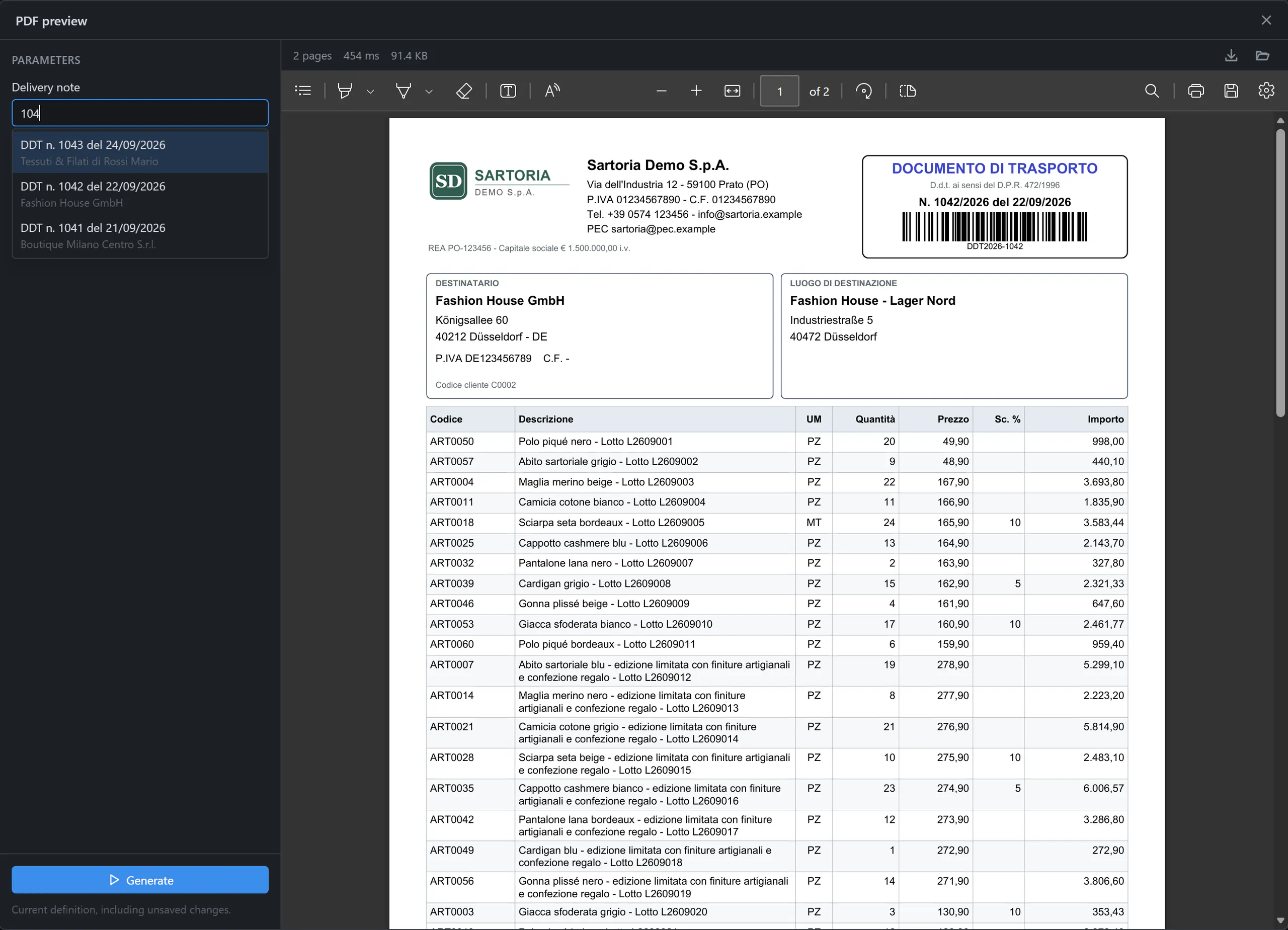
No list of documents?
Requesting publication
Your ERP keeps printing the published version until a new one is approved. When your draft is ready:
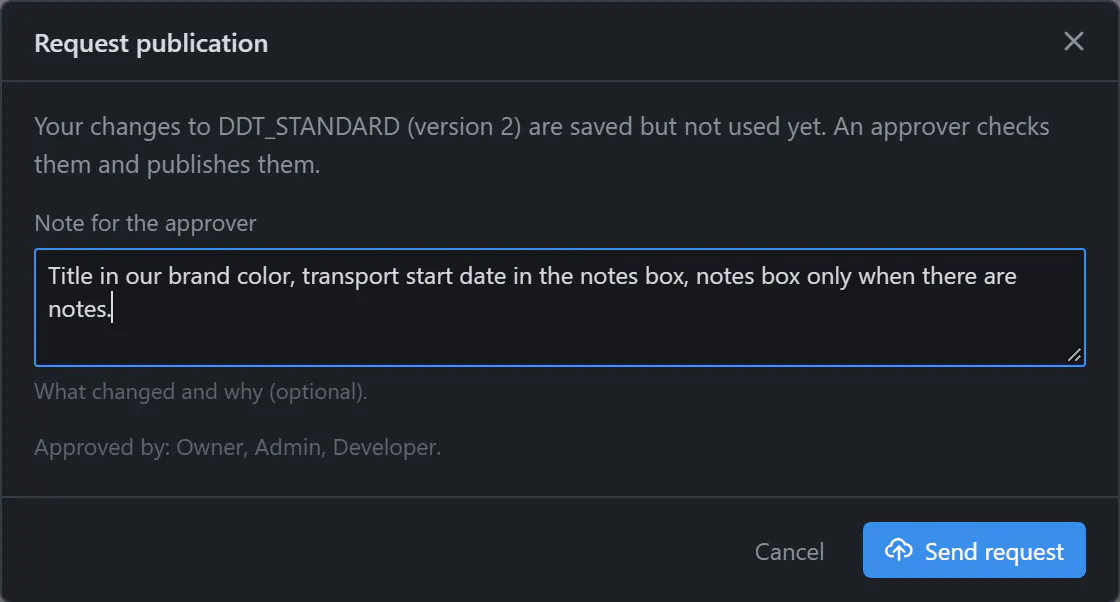
- Click Request publication at the top. Your changes are saved first; in Note for the approver write what changed and why (optional, but it helps), then Send request.
- The approvers are notified. The button becomes Awaiting approval: you can keep working and send the request again (it replaces the previous one) or Withdraw it.
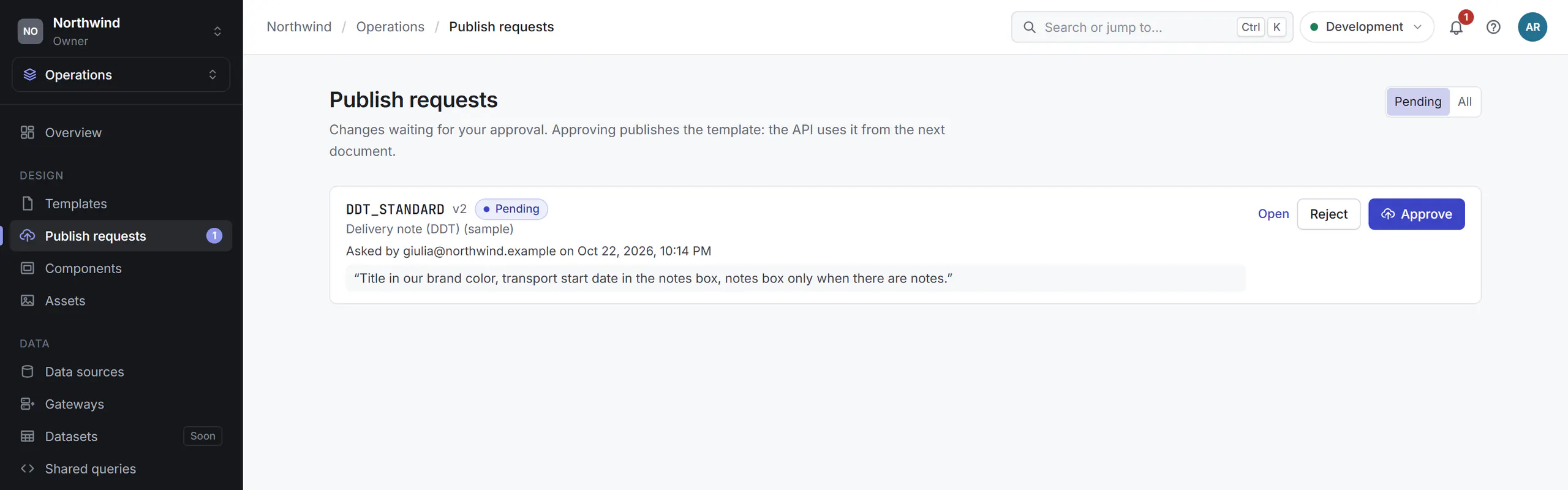
- The approver opens Publish requests, compares the versions and chooses Approve (the draft becomes the version in use, at once) or Reject with a comment for you. You get a notification in both cases.
Comparing and restoring versions
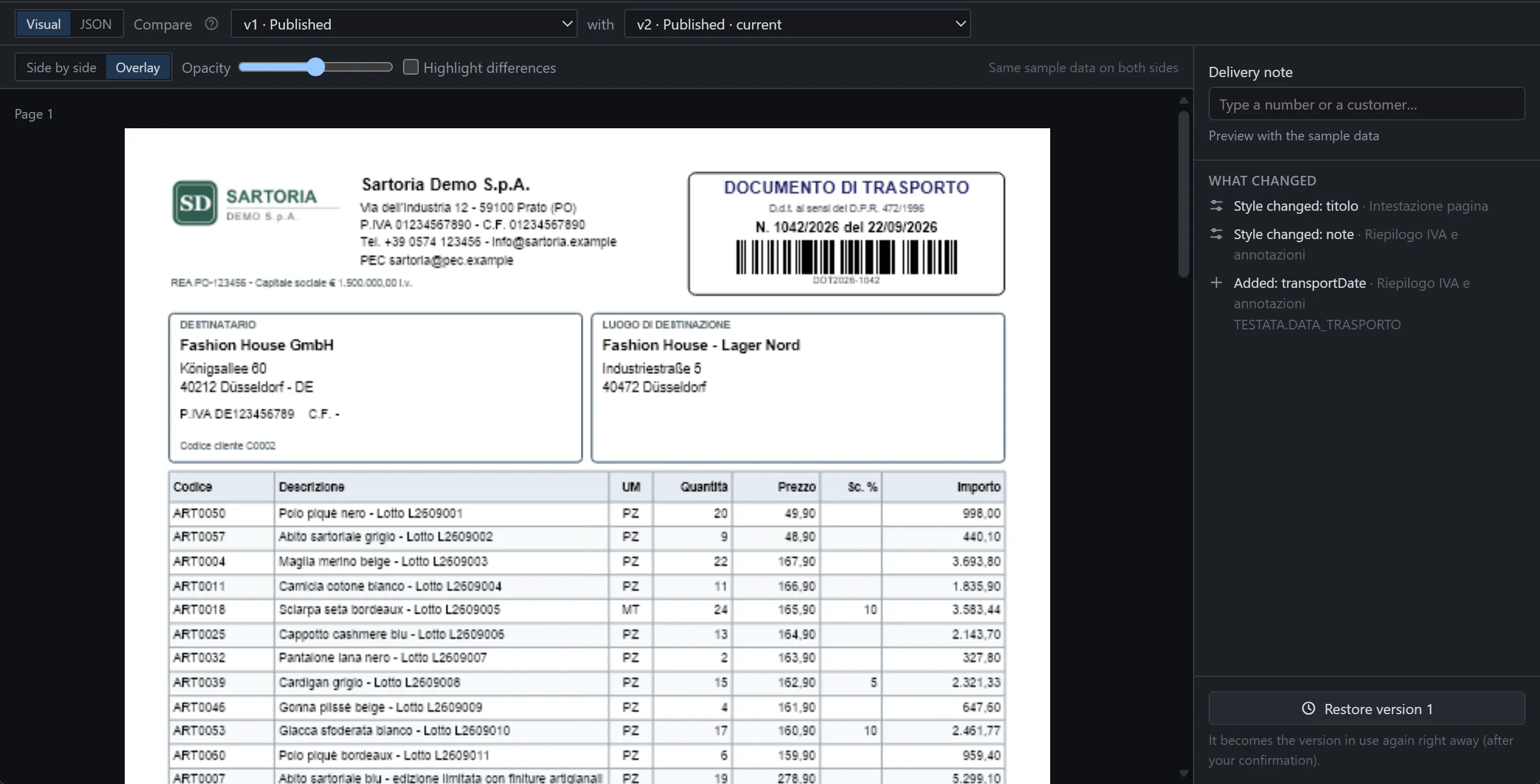
Versions (the clock at the top of the Designer) lists every version with its note, who changed and who published it. Below, choose two versions to compare:
- Side by side or Overlay, with the Opacity slider; Highlight differences turns black whatever is identical, so only the changes stay bright.
- Both sides use the same data: the sample data or a real document picked on the right.
- What changed lists the changes in words: Added, Removed, Moved, Style changed…
- Restore version 1: for approvers the old version is back in use right away (after a confirmation); for you it becomes a new draft, to publish or to request.
What to ask your software house
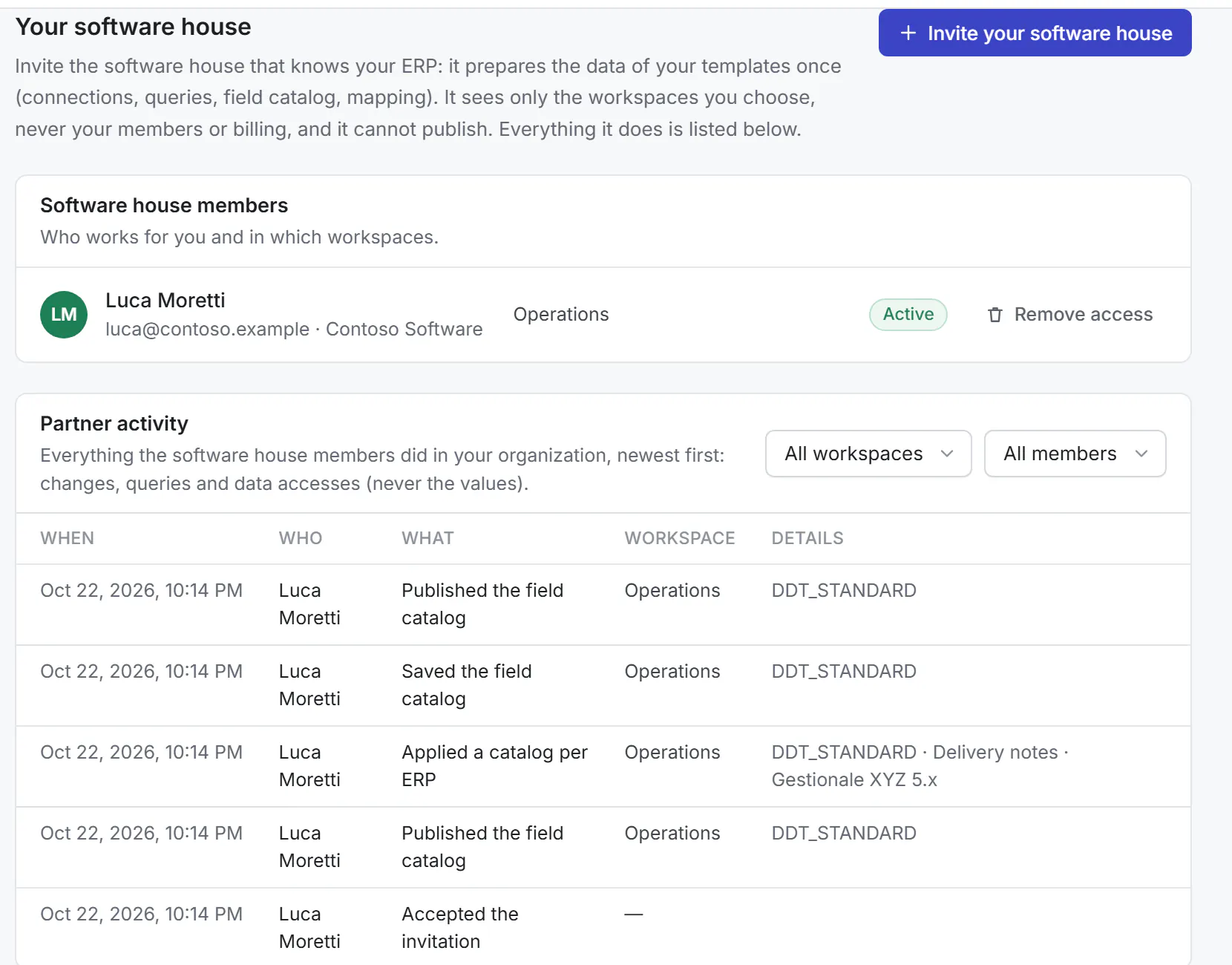
Your software house (or the Prynt team) does the technical part once; after that, the changes are yours. An administrator of your organization invites it in Settings → Software house → Invite your software house, with a role limited to data (data_partner) in the workspaces you choose. Everything it does appears in Software house activity, on the same page.
Ask them to
- connect your ERP's database (read only) and the queries of your documents;
- publish the field catalog with names you understand, and add the fields you miss;
- connect the required fields of the ready-made templates you use;
- prepare the list of real documents for the preview (for example the last delivery notes);
- change what is data, not layout: a new total, a different sort order, data from another table.
Your software house can ask for publication, never publish: someone of your company approves.
Messages and what to do
- The … field is not connected: ask your software house. A field used by the template has no data behind it yet. Tell your software house the name of the field; meanwhile you can keep changing the layout.
- The required field … is not connected: ask your software house. A ready-made template needs that field from your data: they connect it once, in Required fields and documents.
- No field catalog yet: the list of fields has not been published. You can still change texts, logo, colors, fonts and the order of the columns.
- This change touches the document's data (or Only your technician can change the data): something you did would change the data, not the layout. Undo the last step (Ctrl+Z) and save again; ask your technician for that change.
- The list could not be read: ask your technician. The list of real documents does not work: the preview with the sample data still does.
- Complete the conditions to apply them. A row of Show if lacks its field or value.
- You changed the template after asking: send the request again. The approver must see your latest version.
Something else? In the Designer, Resources → Suggest an improvement sends your idea to the Prynt team; for an urgent problem, see contact.
Frequently asked questions
Can I break the documents we print?
No. You work on a draft; the printouts use the published version until someone approves yours, and any earlier version can be restored.
Do I need SQL or programming?
No. You choose fields by name and conditions from menus. Queries and connections are your technician's job.
Who sees my changes before they are used?
The approvers of your workspace (developers, admins, owner, or the roles your workspace chose). They see your note and can compare your version with the current one.
Can I see our customers' data?
Only in the preview, the same data your documents print, read-only. Prynt never changes your ERP.
Where do I find all the details?
The Designer guide describes every panel; keyboard shortcuts are listed there too. In the app, ? at the top opens the help.